Skip to content

INSTANT SOFTWARE DOWNLOAD AFTER PURCHASE | NO TRIGGER CABLES REQUIRED | OPTIMIZED FOR BULLET-TIME & PHOTOGRAMMETRY

Skip to product information
1 of 8

Xangle Store

Virtual.ink - real-time video light-painting software

Virtual.ink - real-time video light-painting software

Select product
Regular price $499.00 USD
Regular price Sale price $499.00 USD
Sale Sold out
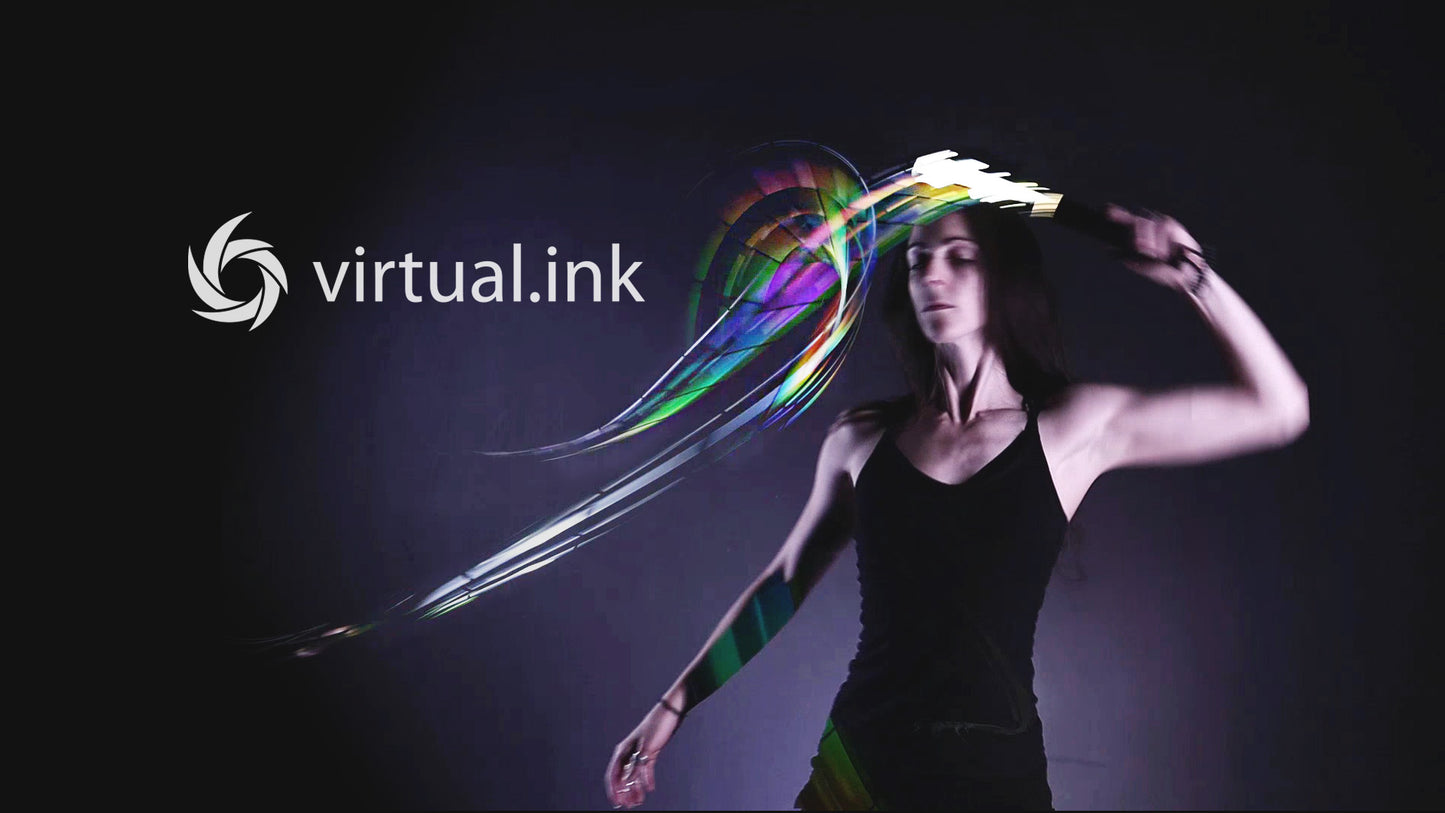
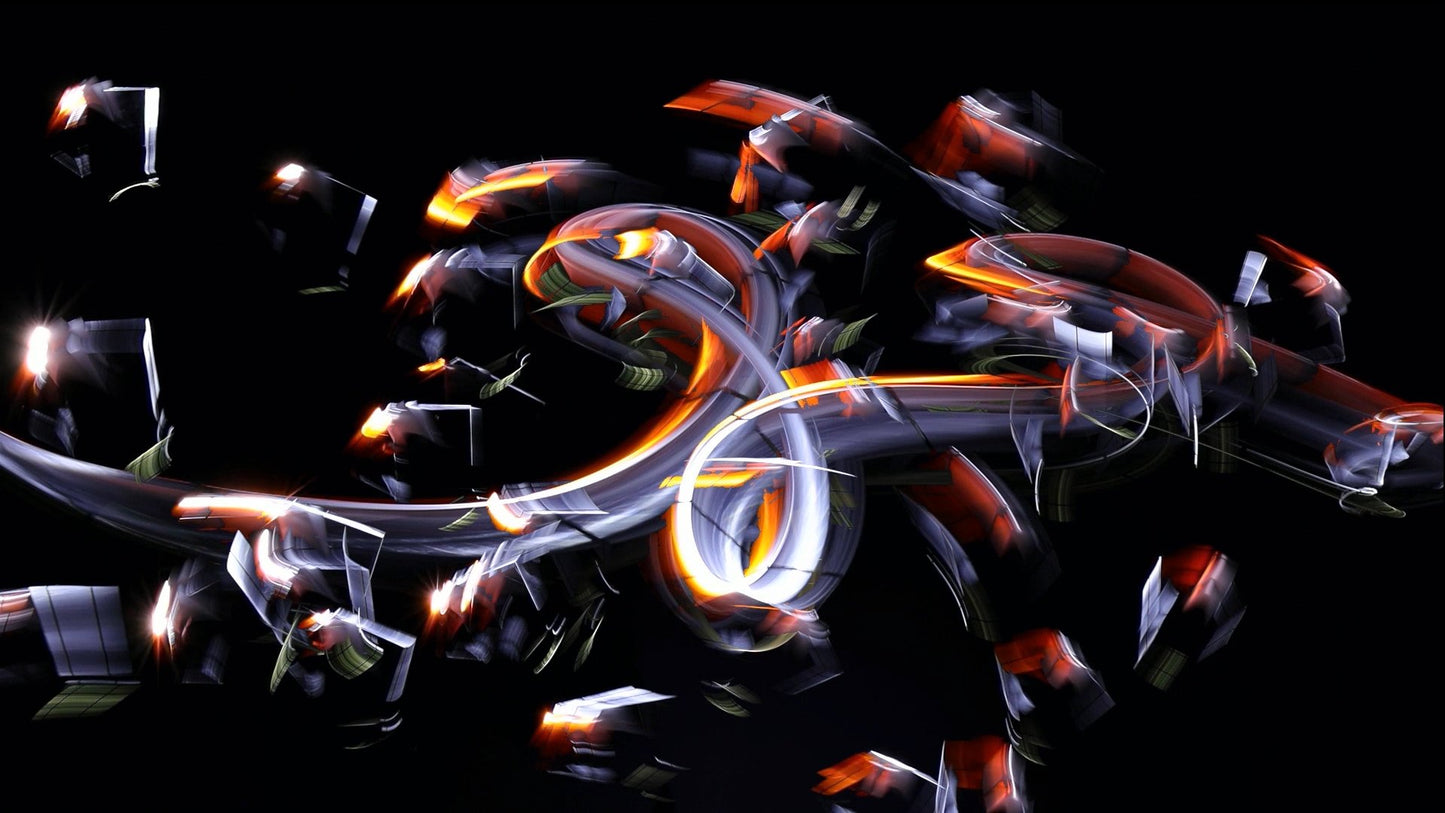
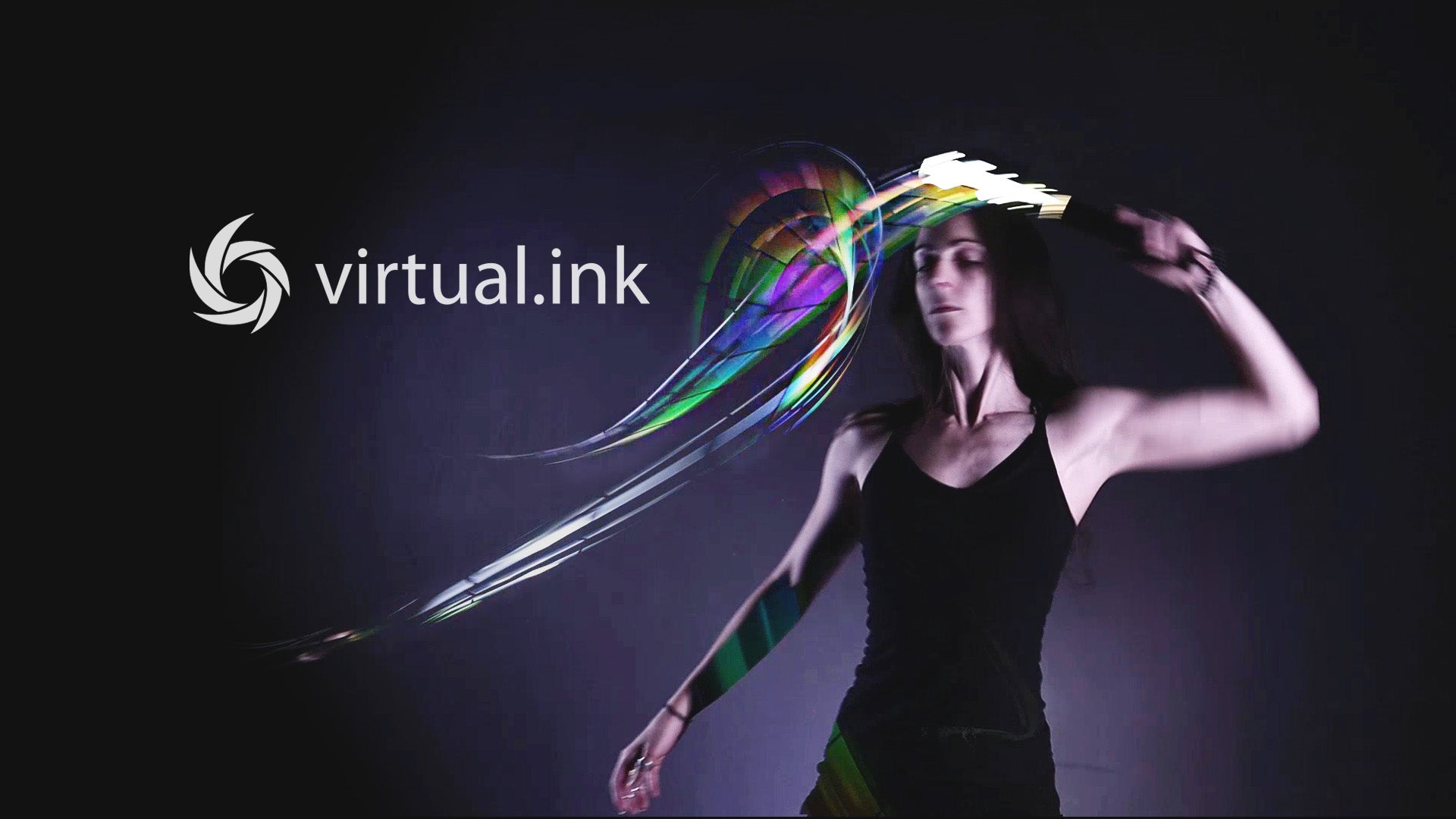
Virtual ink is a video light-painting software we created in 2015 for a live performance we did at TEDxMontréal. It has been used since then in some big scales shows but I failed to find time for me to play with this technology. It’s only in 2018 that we finally decided to make a much more polished product that is drastically faster and includes tons of new options. This new version goal is to help you create, perform, entertain or teach. That means it can be used either in a studio, on a stage, in a photobooth or at school. 


** NOT MAINTAINED AT THE MOMENT. Last stable version dates from 2021 and runs well on a Windows 10/11 computer with a Nvidia graphic card. Please test with a trial license before placing an order - info@xangle.team ** 

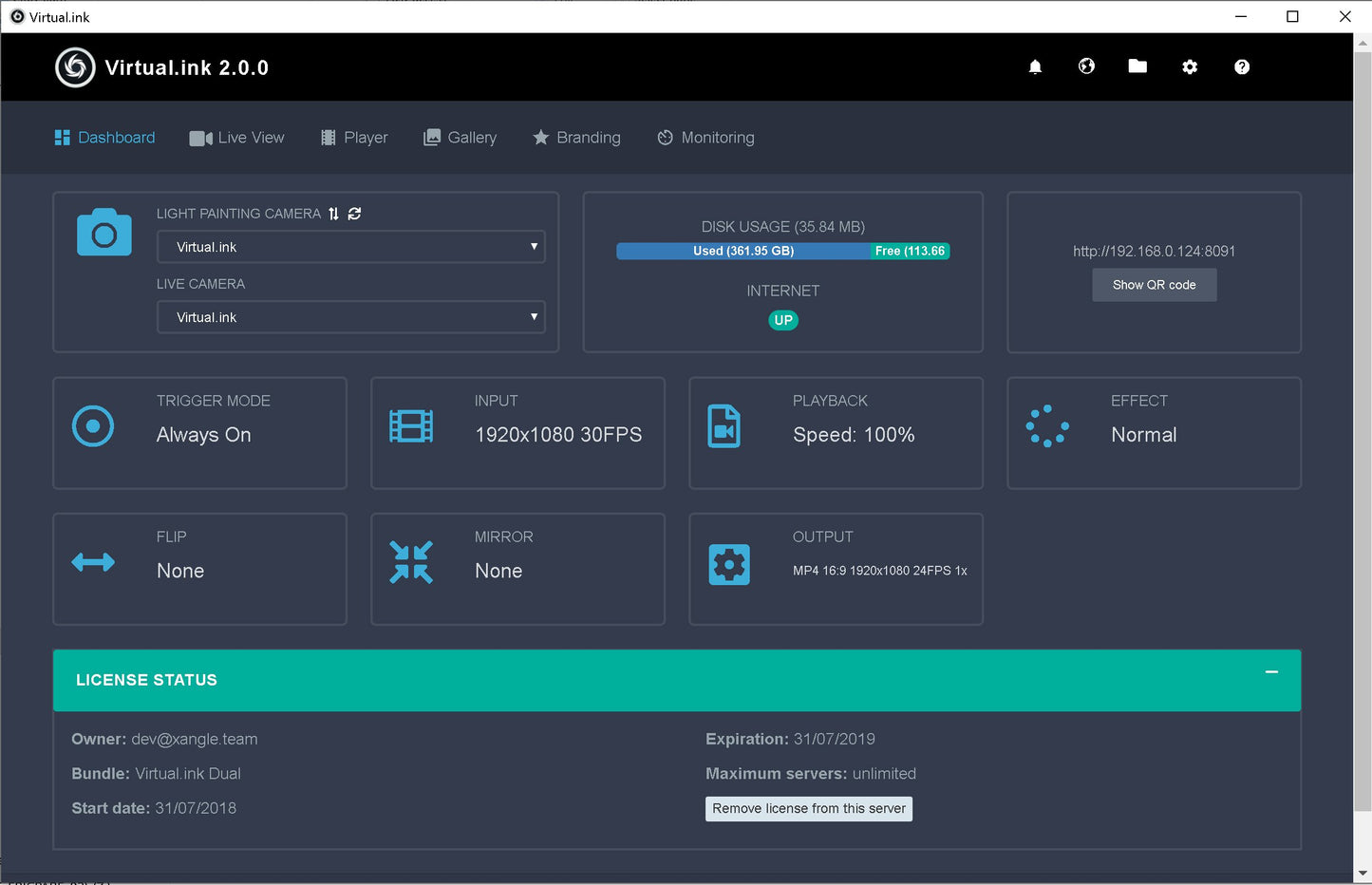
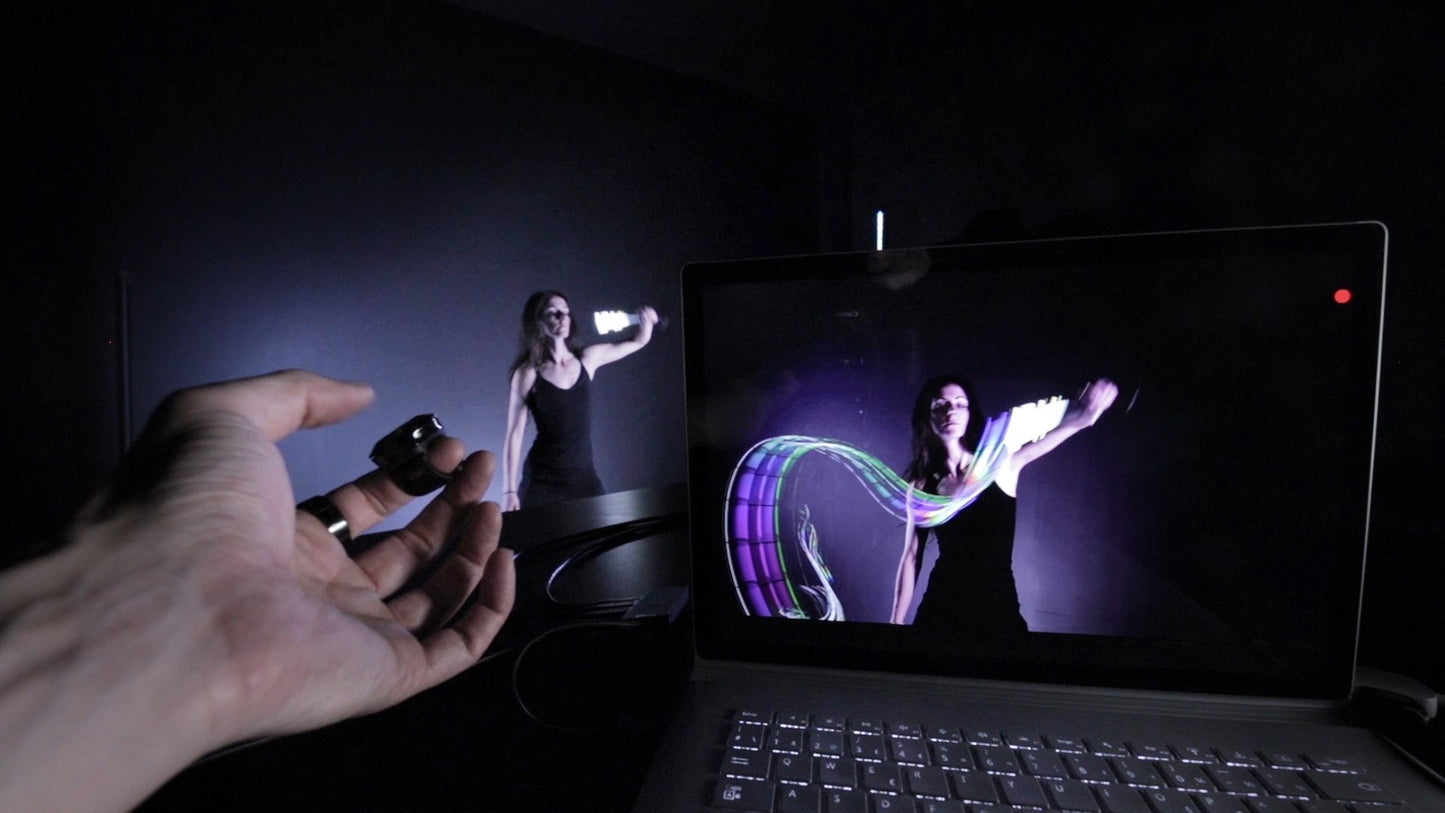
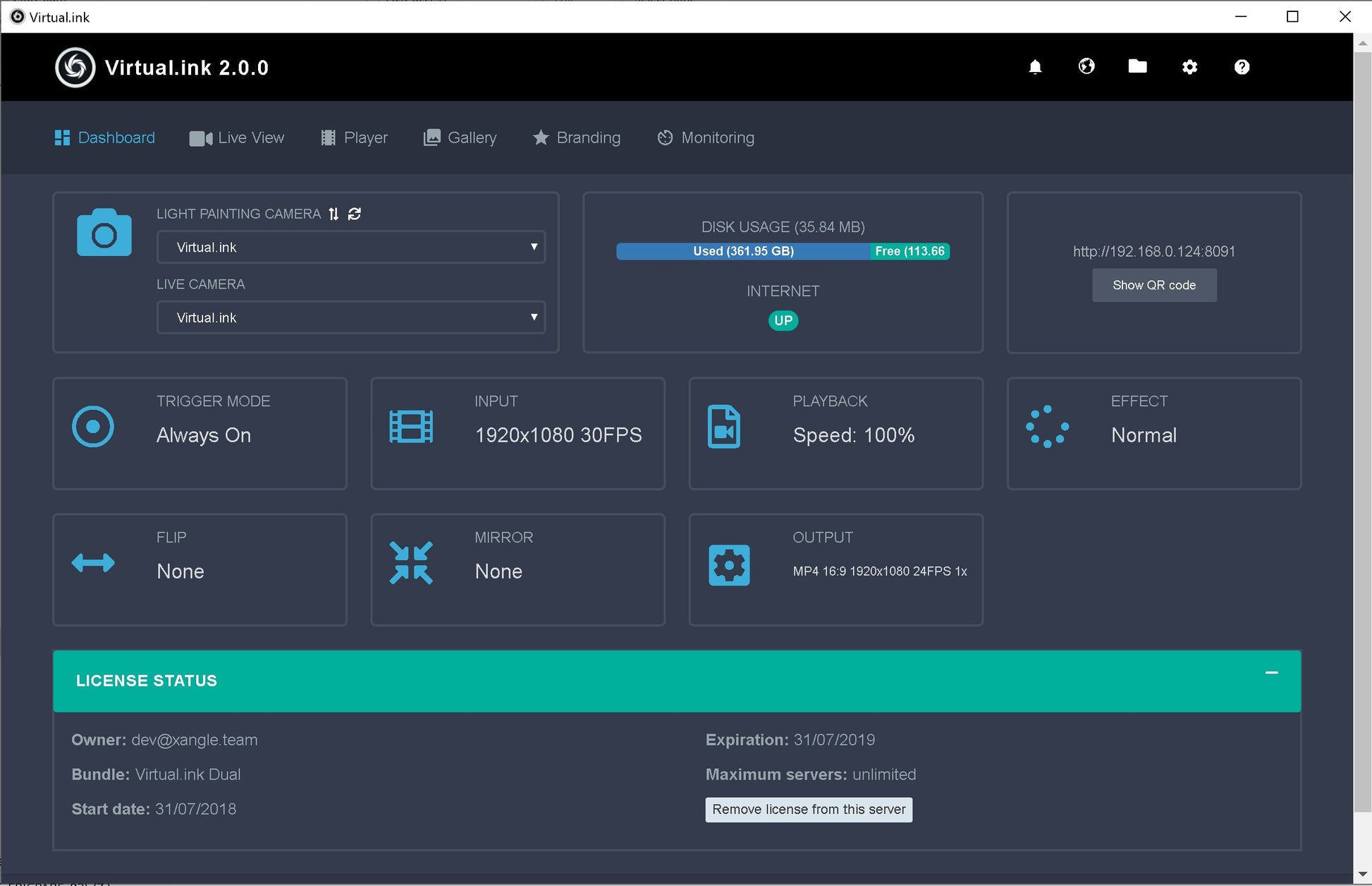
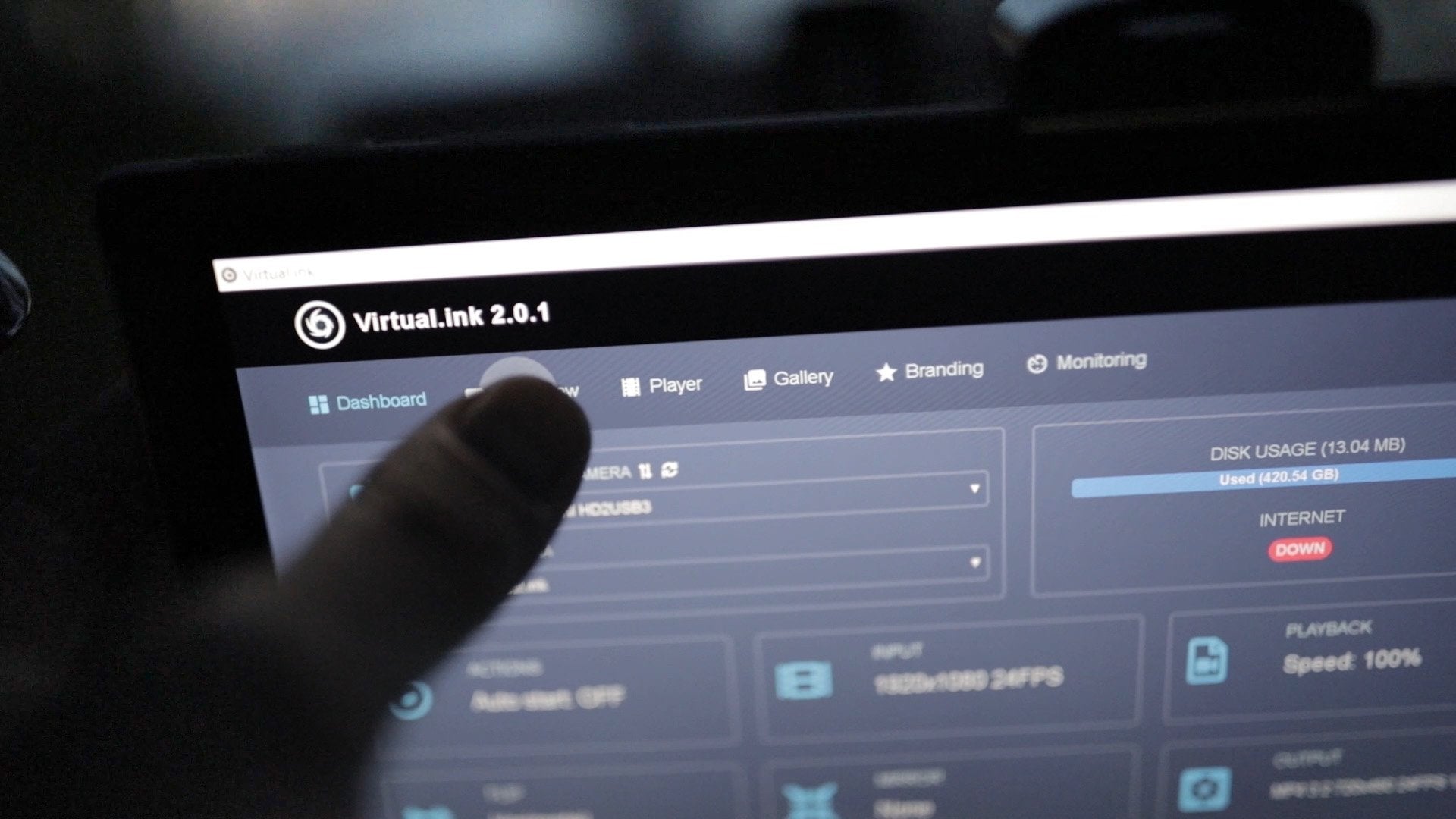
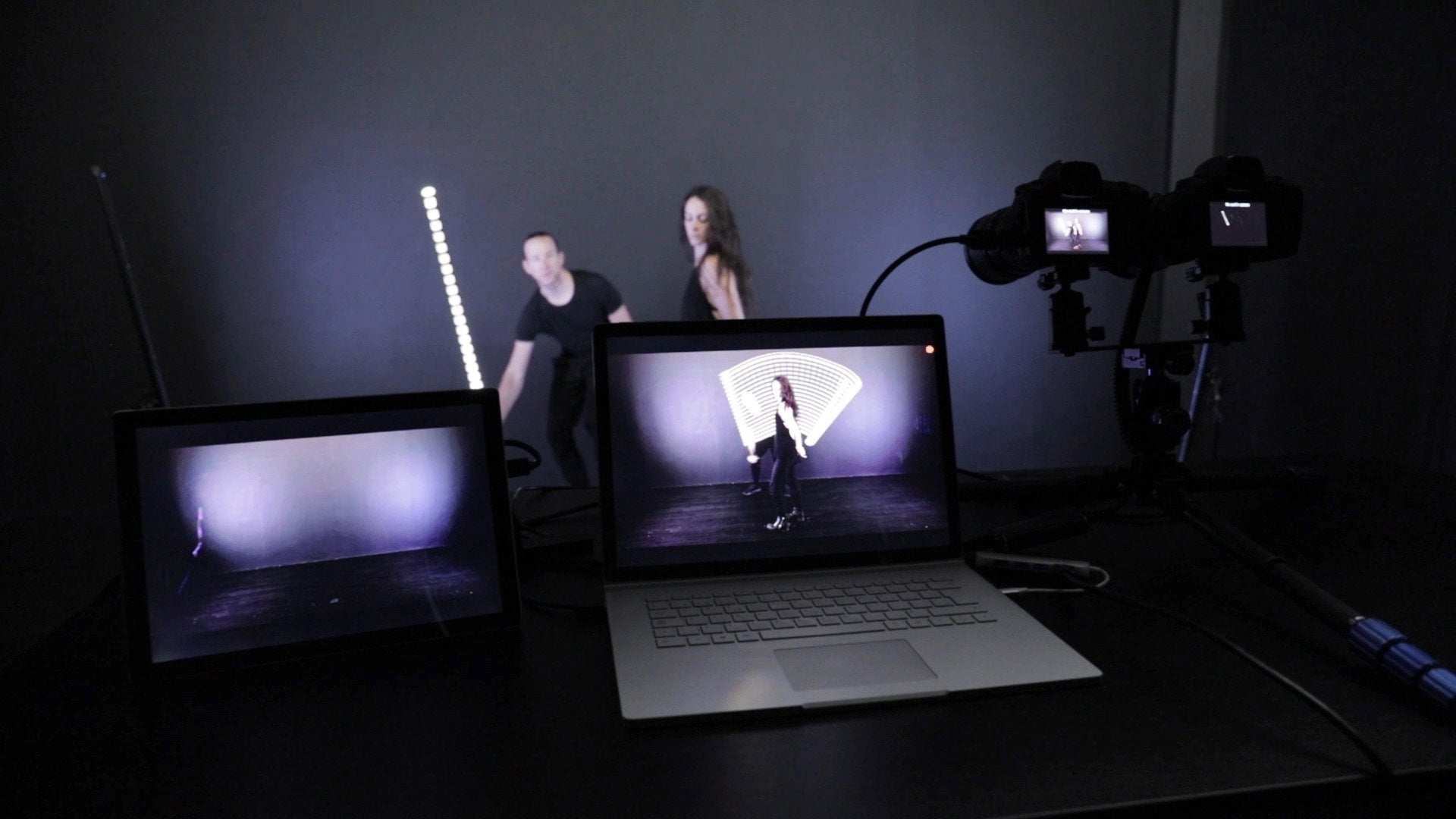
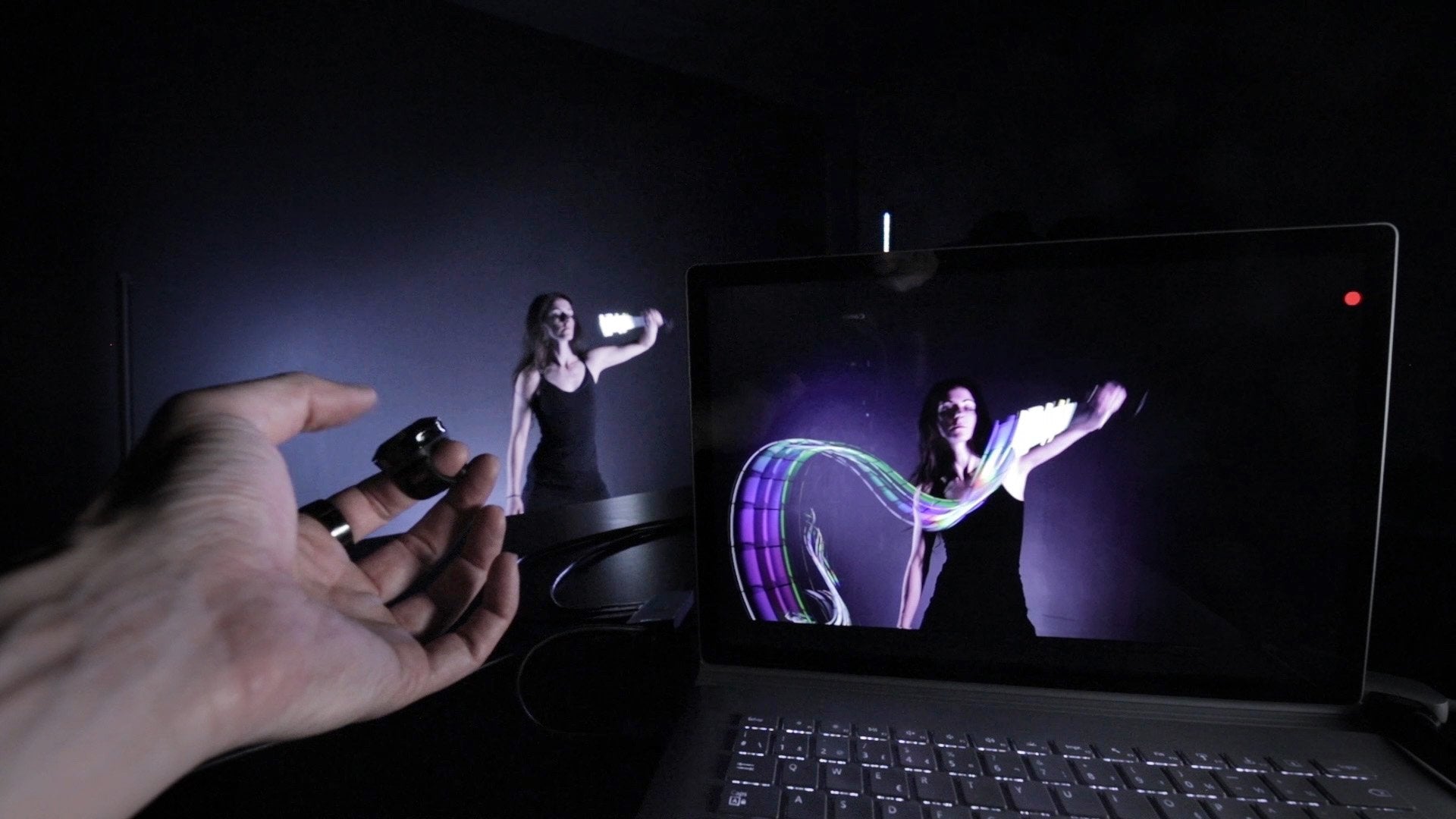
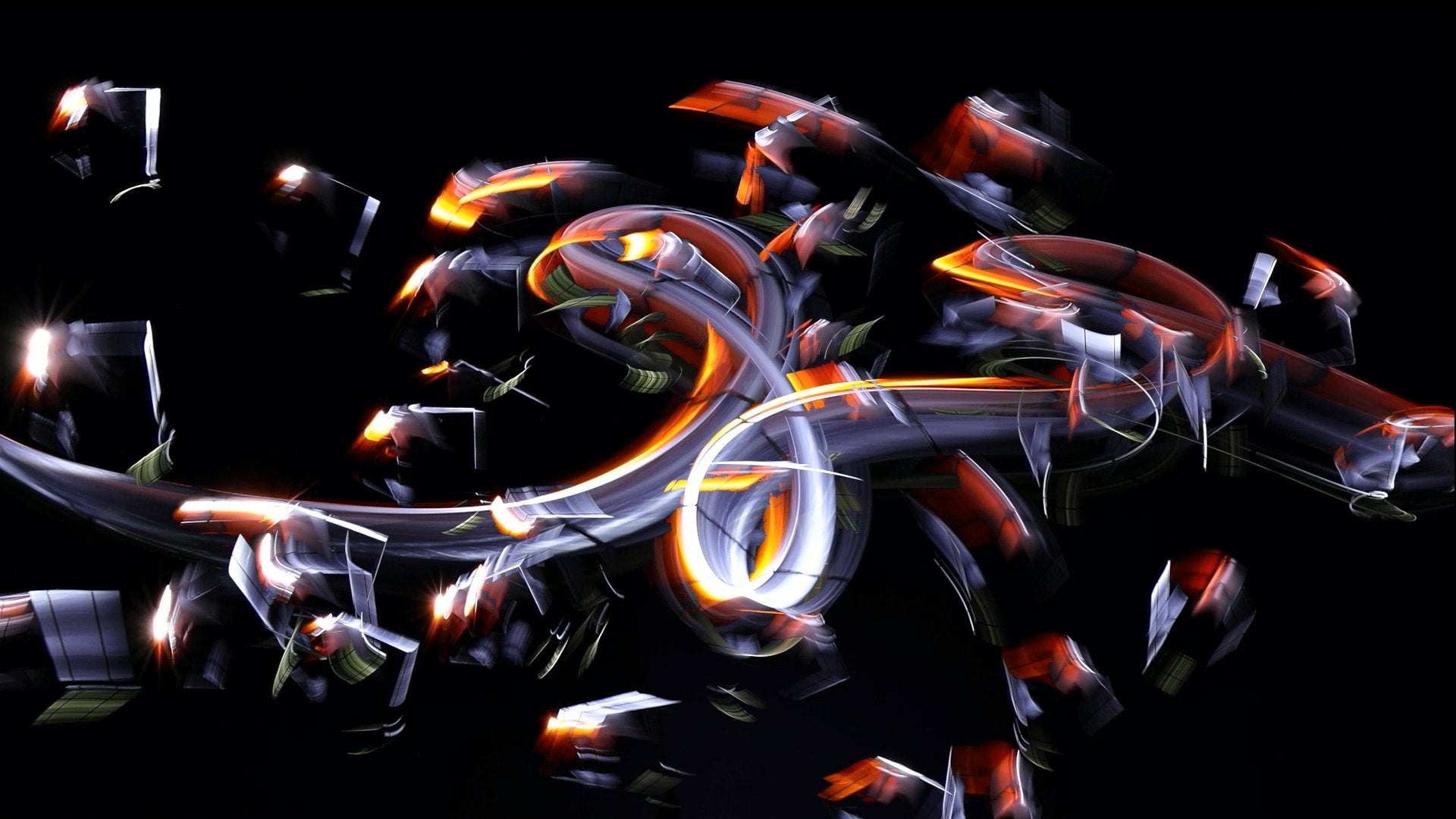
Virtual.ink is a real-time video light-painting software. It uses the hdmi feed of your camera to capture 1080p footage and provide you nearly instant replay.

See full details on https://virtual.ink/

Features:
*** SEE THIS PAGE FOR THE FEATURES LIST BY LICENSE TYPE: https://virtual.ink/features ***
  • Real-time video-light-painting app (~300ms latency depending on system)
  • Live preview
  • Control using a keyboard, a mouse, a Bluetooth powerpoint presenter or a gamepad
  • Multiple control modes and key binding configurations
  • Full-screen mode
  • Mirror mode (2x, 4x, twisted butterly, 3x horizontal) 
  • Audio recording & speed control
  • Automatic crossfade at reset (customizable from 0 to 5 seconds)
  • Decay mode
  • Save photo and/or video
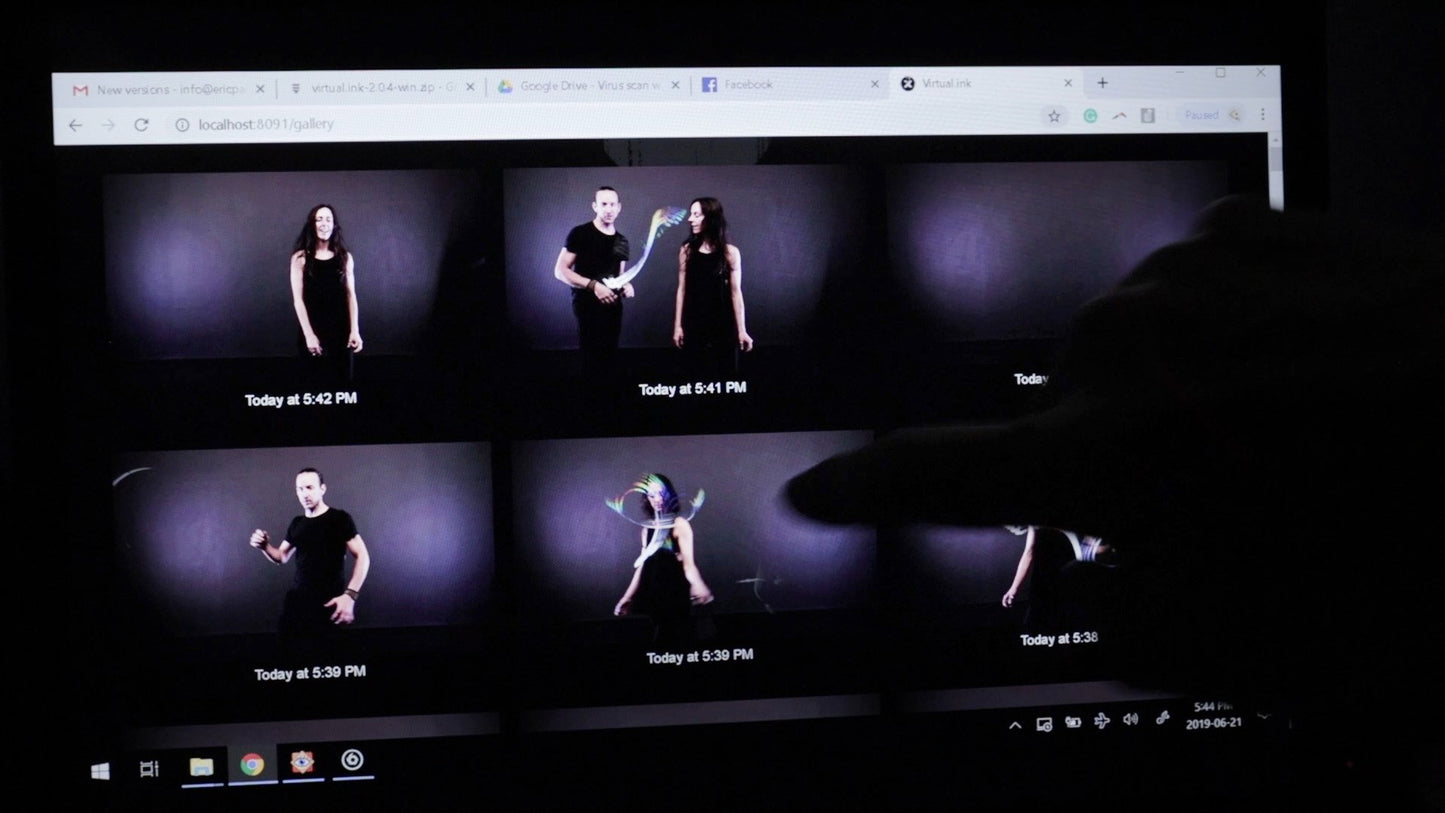
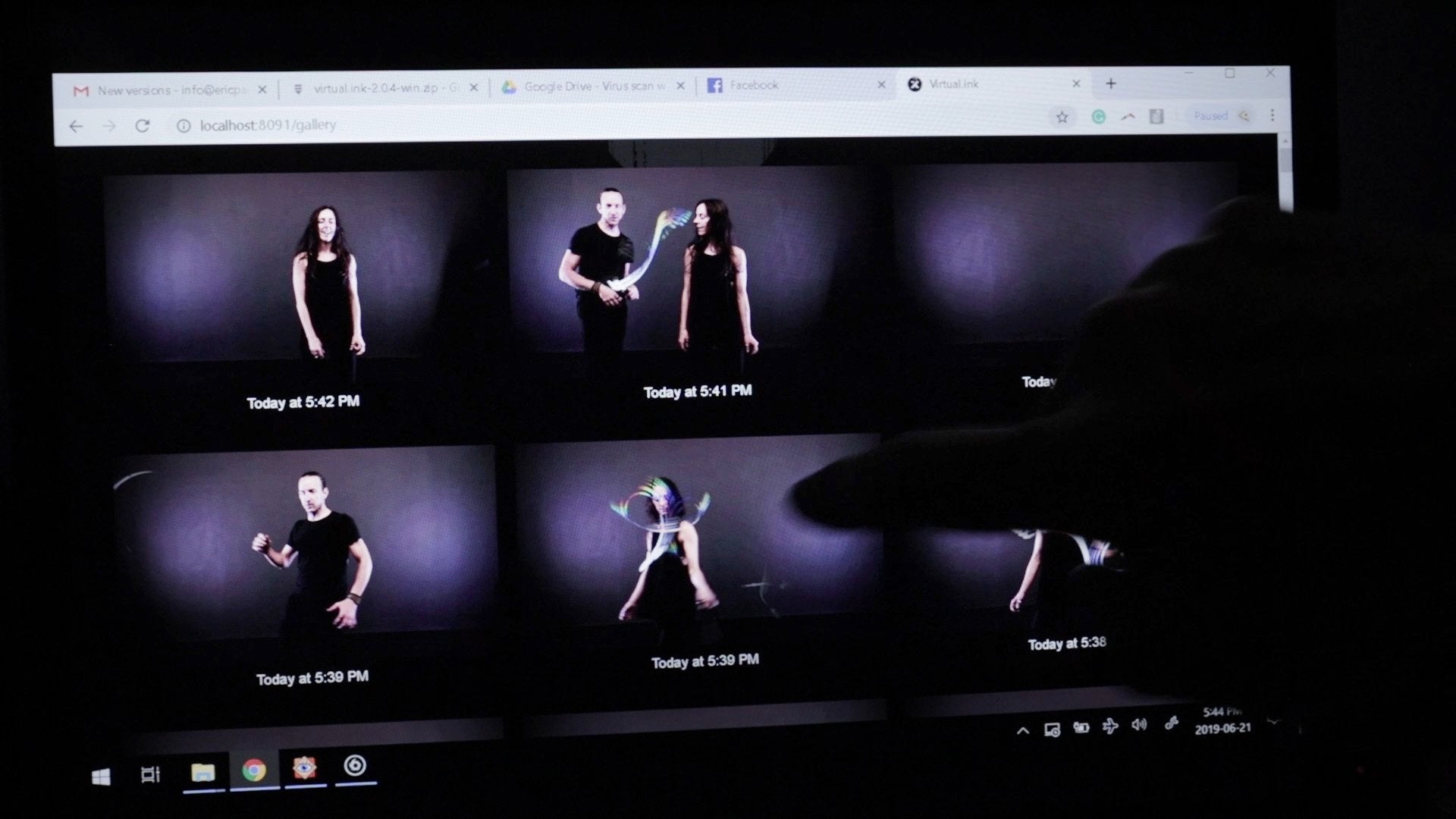
  • Image/video gallery
  • Slow down / speed up sliders
  • Rewind / Boomerang effect
  • Countdown
  • Replay monitor (auto loops last or five last created videos)
  • Pause, resume and reset exposure
  • Up to 4k resolution
  • Light-painting while not recording + clean hdmi out
  • No record time limitation (20 seconds max on the basic license)
  • Video post-processing add-ons: Watermark, Alpha transparency (.MOV) overlays, blending mode (.MP4) overlays, Color Grading (LUT), intro/outro video, mp3 soundtrack
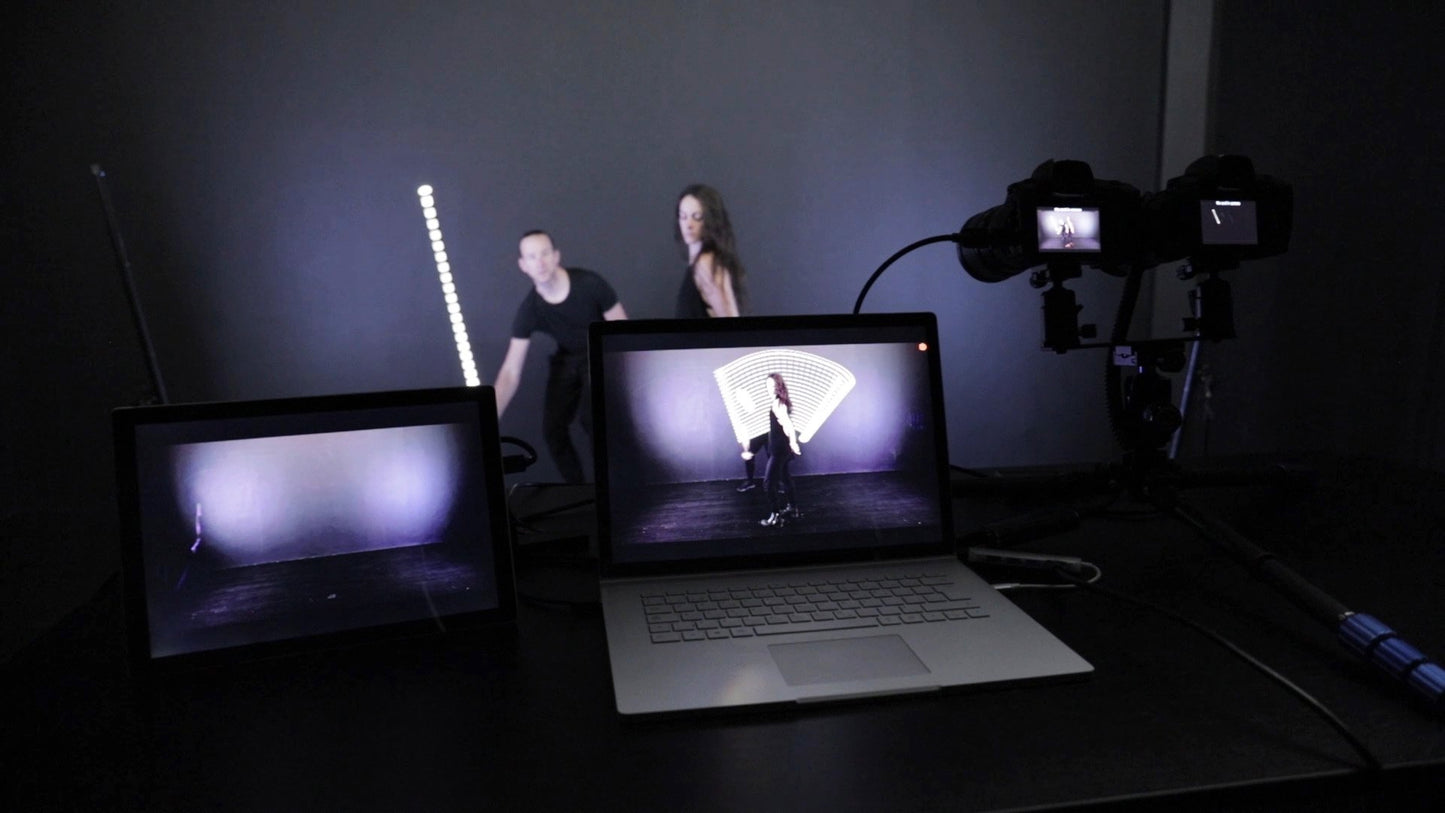
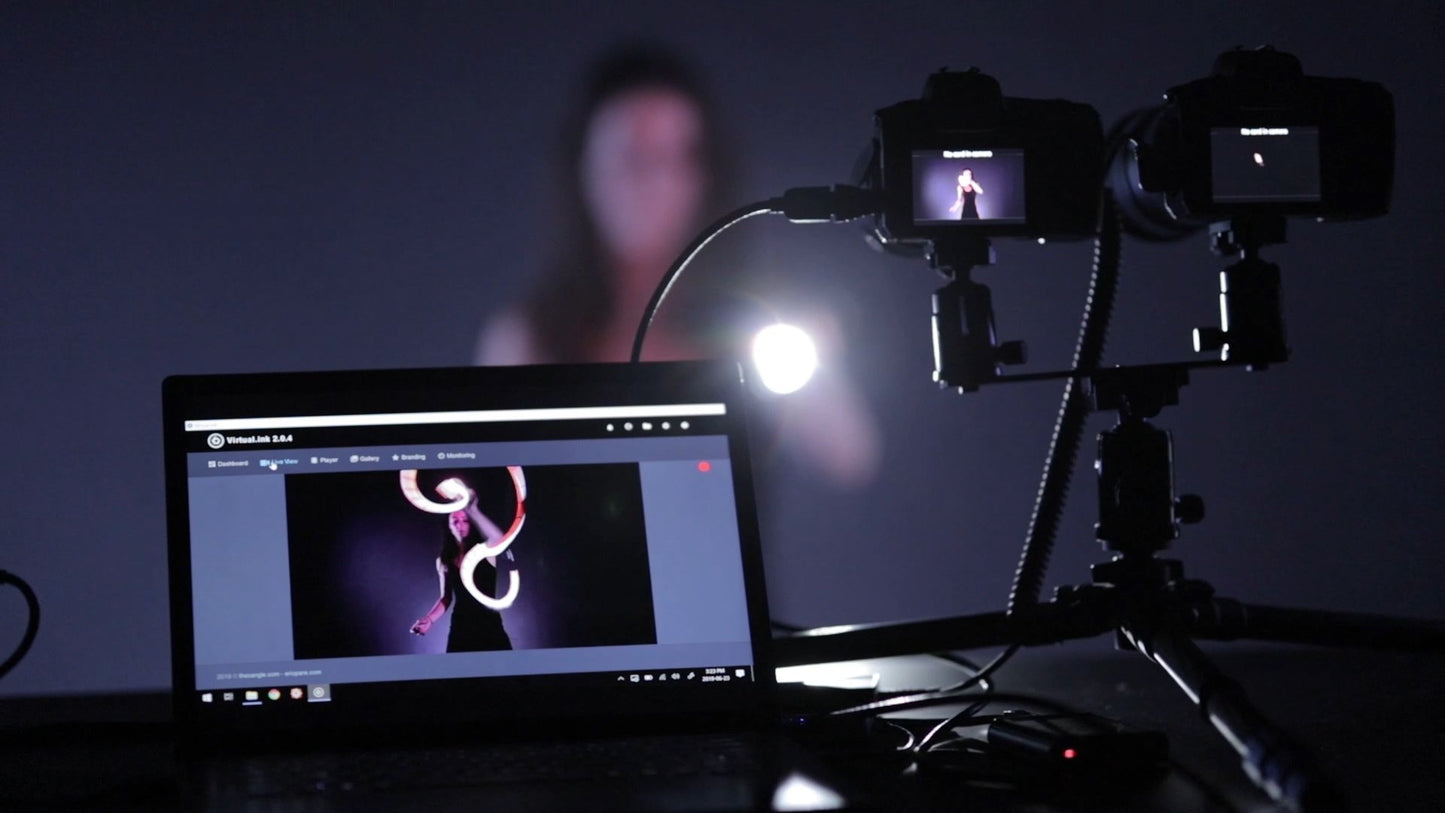
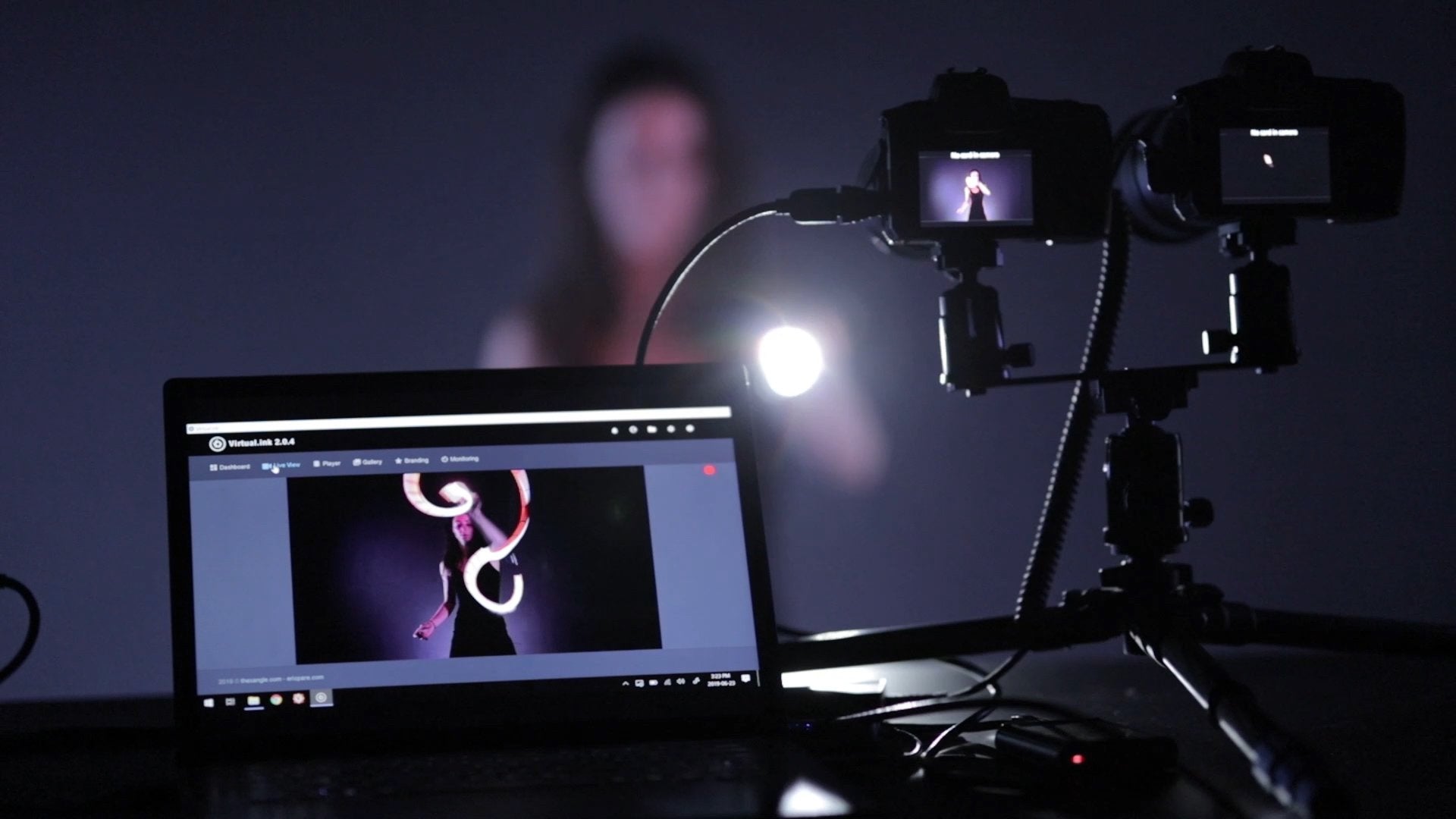
  • Dual-cameras allows you to see the light-painter as well as the light-painting
  • Sharing system (photobooth) - by email, SMTP account required
  • Gallery and Replay monitors accessible from other computers through the same local network via a web browser (local ip address)

Samples

  • NHL All star game 2020 (USA) - link
  • JZAmir (UAE) - link
  • Russell Klimas @ TEDx (USA) - link
  • ThinkPrint (Brazil) - link
  • Xangle (Canada) - link
  • Lightpixproject (USA) - link
  • LoopdingVienna (Austria) - link1 link2
  • Patrick Rochon (Canada) - link
  • Steamcreative (USA) - link
  • David Scott (USA) - link
  • Andrea Boyle (USA) - link
  • Frédérick Leroux (France) - link
  • Tim McGraw - link
  • Denis Smith - link
  • Kocho - link 

System requirements

  • Fast Intel i7 processor (4k) or Intel i5 processor (720p) with one dedicated USB3 port
  • NVIDIA graphic card (NVIDIA GeForce RTX 3070 or higher is recommanded)
  • 8GB RAM
  • 700 MB available on hard drive
  • Microsoft Windows 10
  • One hdmi capture card 
  • One camera that has clean-hdmi-out
  • Internet connection (license login)
  • For 2 cameras, you're going to need two cameras, two hdmi capture cards and two fast USB3 ports. We highly recommend a gaming computer (we're currently having great results using an Alienware or ROG computer)

Make sure you have a compatible camera and a compatible hdmi converter before placing an order: https://virtual.ink/supported-cameras/  / https://virtual.ink/hdmi-to-usb-converters


Frequently asked questions 

1- General questions

1.1 - What kind of cameras are supported?
Your camera needs to be able to output clean HDMI out (without overlays). Check out your camera manual if you are not sure. Most cameras released after 2021 can output clean HDMI.

1.2 - How can I save my videos?
For short videos (ideally under 30 seconds), you can use internal saving and instant replay. This is the ideal situation for photobooths or short animations. To save your videos, go in the live-view and hit the record button (or use the “b” key) to start and stop the recording. You can also set a pre-defined recording time from the dashboard/actions

For longer videos (live performances, etc), it is more efficient to save your mp4 files externally. There are two options for this:

1- Use an external HDMI recorder (for example, an Atomos Ninja V: https://amzn.to/34trt4j)

2- Record from a second computer using a additional HDMI converter using OBS or similar. The set up would look like this: computer #1 with virtual.ink -> HDMI to USB -> computer #2 with OBS.

1.3 - How can I save individual picture frames?
By default, the last frame of a short clip is going to be the thumbnail and an available image for sharing. You can also snap a few additional frames during the process by using the “e” key (or the “save” button at the bottom of the live-view). If you are currently recording, then the jpg files are going to be available in the same session (folder) as your current video. If you are not recording, then you’re going to get a new folder each time you save a new picture.

1.4 - Where can I find my saved images and videos?
From the software, click on the “folder” icon on the top-right corner

1.5 - What type of wireless remote control can I use?
For outdoors work or performances or photobooths, I highly recommend a gamepad with a dedicated dongle and a usb extension. I also love the Kokuyo Ela-fp1 finger trigger which works greatly and allows me to keeps my both hands free: https://amzn.to/2DhSgq6.

1.6 - Do I need internet to run Virtual.Ink?
You need an internet connection in these two cases only: 1) to validate your license when you run the app. 2) to share the videos from the sharing screen. If for some reason you go offline during an event, you’ll still be able to use the sharing station, but you’ll have to get back online at some point to clear the queue.

2- DUAL MODE

2.1 - What is the difference between using one or two cameras (dual mode)?
One camera is typically used to work in dark environment where you do regular light-painting. Here are a couple of examples: example1, example2, example3. In these cases, you can use either light-painting or a slow-speed strobe to light-up your subject. However, with two cameras, you can shoot in pretty bright light and still see the light-painting. This is achieved by having one camera capturing the ambient light, while the second one is getting the light-painting only. Here are 4 examples: example1, exemple2, example3, example4.

2.2 - Do I need to have two cameras of the same model?
No, but ideally, you will have the same focal length on both cameras so you can easily align the images.

2.3 - Do I need two hdmi capture cards to use the dual feature?
Yes, each camera should be connected to its own converter, and then you can connect both converters to a single computer

2.4 - How do I align my two feeds?
By using two lights. Have a subject in the center of your frame, and try to align the two lights. You can fine-tune the alignment straight from the software using the arrow keys.

  • Licenses are instantly attributed and can be self activated at any time (within a two months period)
    * One license = one computer. You need to log out from one computer to be able to log in on another one

Documentation: https://doc.xanglecs.com/virtualink

View full details